To update your email address, please follow these steps:
1. Log in to your TiPJAR account.
2. Click on the Settings cog in the top right corner.
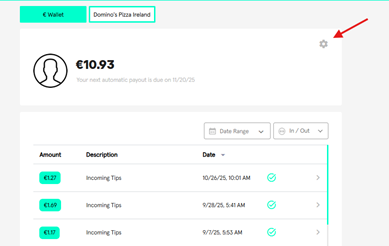
3. Select "Manage Your Account."
4. Under Login Credentials, you will see your current email address along with a pencil icon.
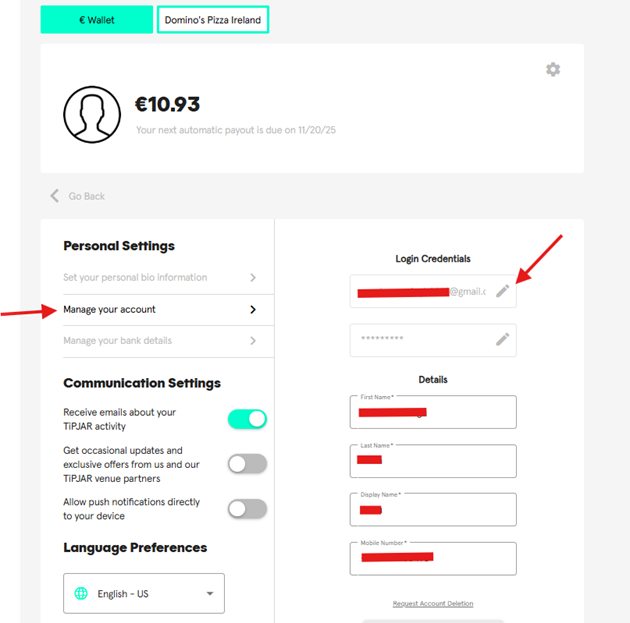
5. Click the pencil icon and follow the on-screen steps to update your email.
6. Once completed, you will need to confirm the change. A confirmation email will be sent to your new email address—please make sure to verify it to finalise the update.
Was this article helpful?
That’s Great!
Thank you for your feedback
Sorry! We couldn't be helpful
Thank you for your feedback
Feedback sent
We appreciate your effort and will try to fix the article